Add story to a level
Trigger a narrative moment at an appropriate location.
Adapted from KOKORA's existing creation guides
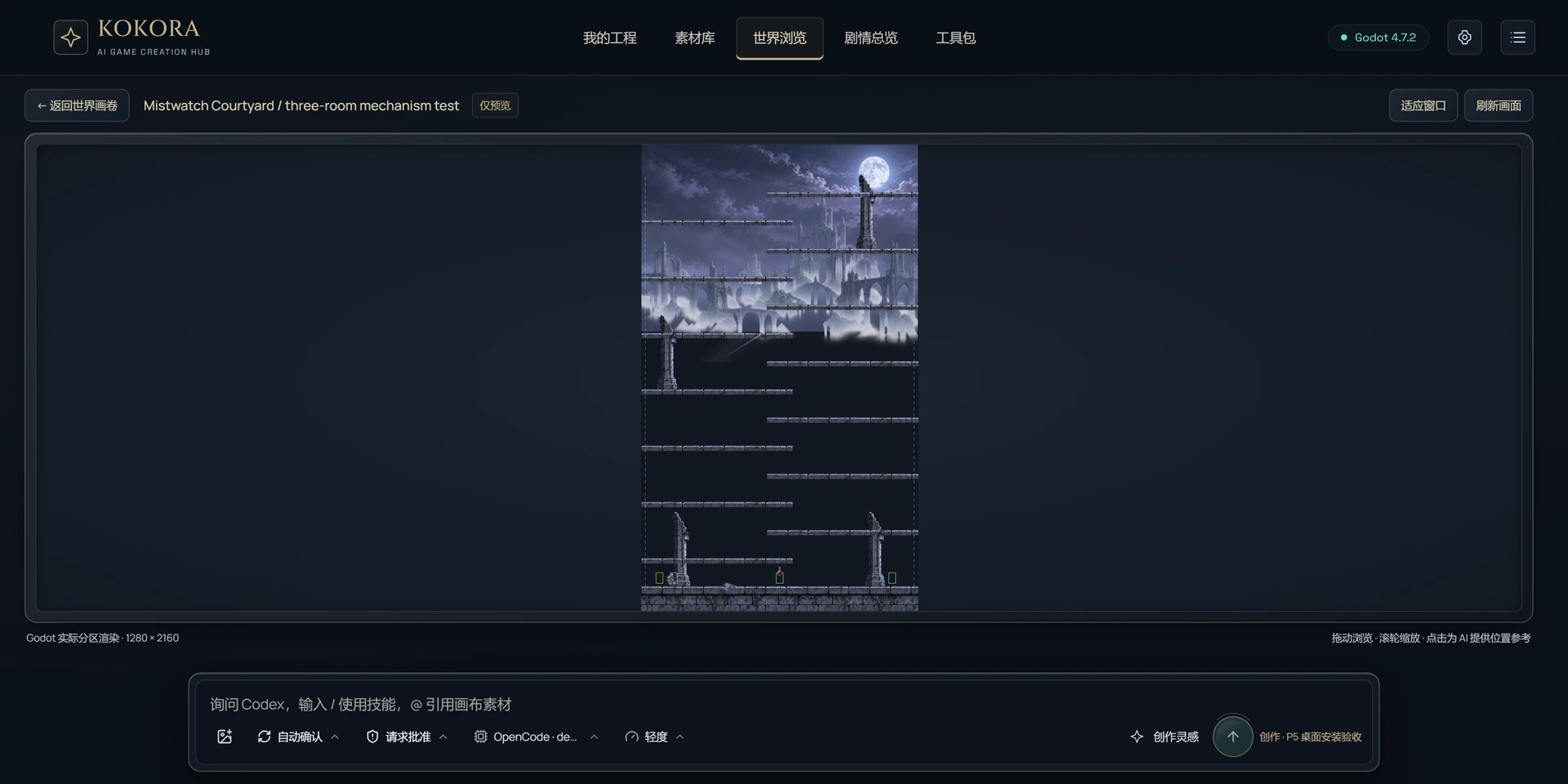
The KOKORA Windows app currently uses Chinese. These are real Chinese UI captures; earlier versions are labeled. Click an image to enlarge it.
Before you start
Target scene, trigger position, story and repeat behavior.
 Enlarge ↗
What to do next
Choose a suitable trigger, connect existing dialogue or event logic, and preserve level behavior.
A request you can use
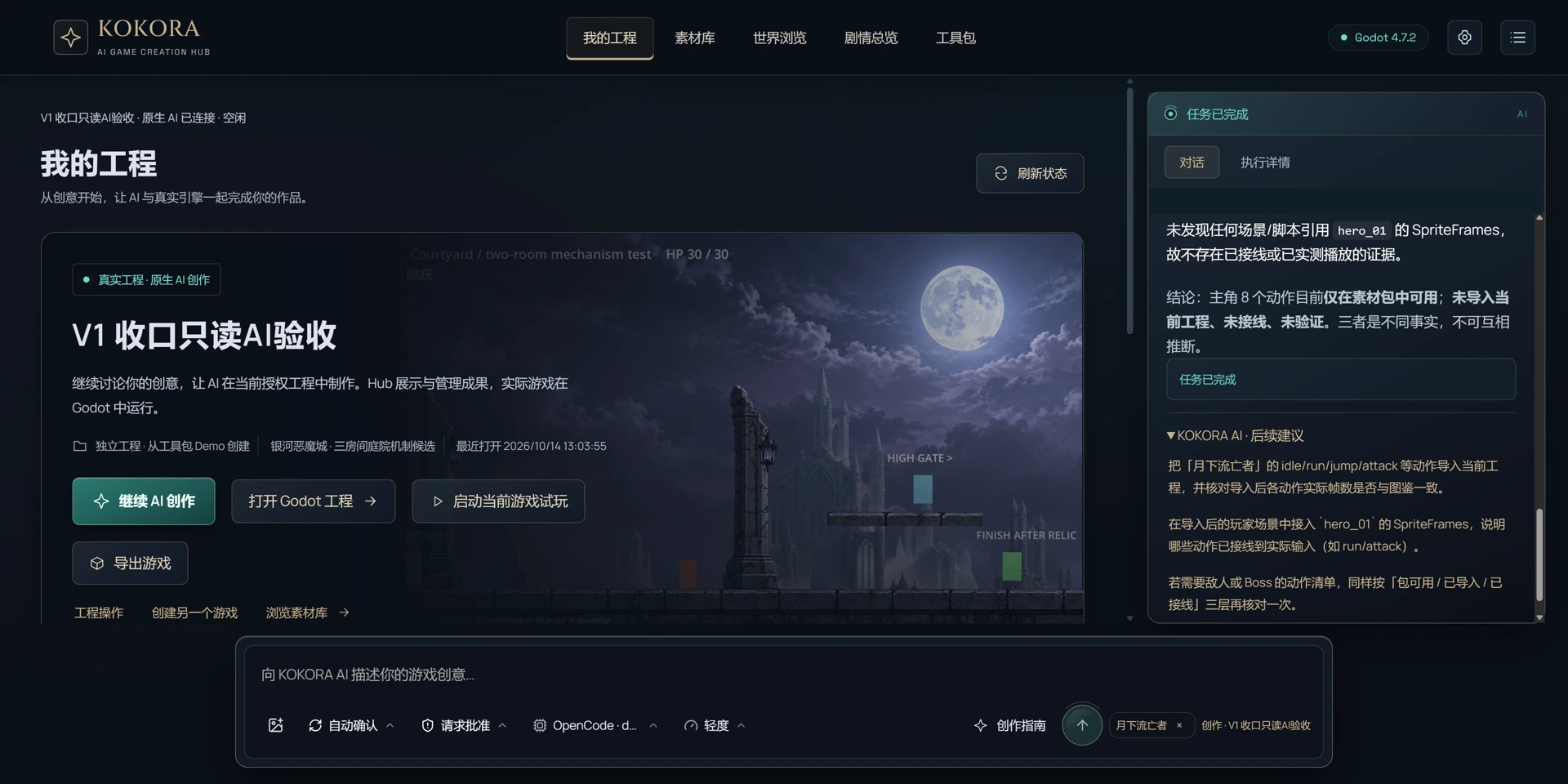
Add a story moment that fits this level and actually triggers when the player reaches an appropriate position.
 Enlarge ↗
How to verify the result
Verify triggering, dialogue exit, repeated entry and restored player control.
Note
Start with a new test game to protect existing work. Check what is in the asset pack, what has been imported and what is actually used in the game. Review after saving and playtest when possible.