Connect the Godot engine
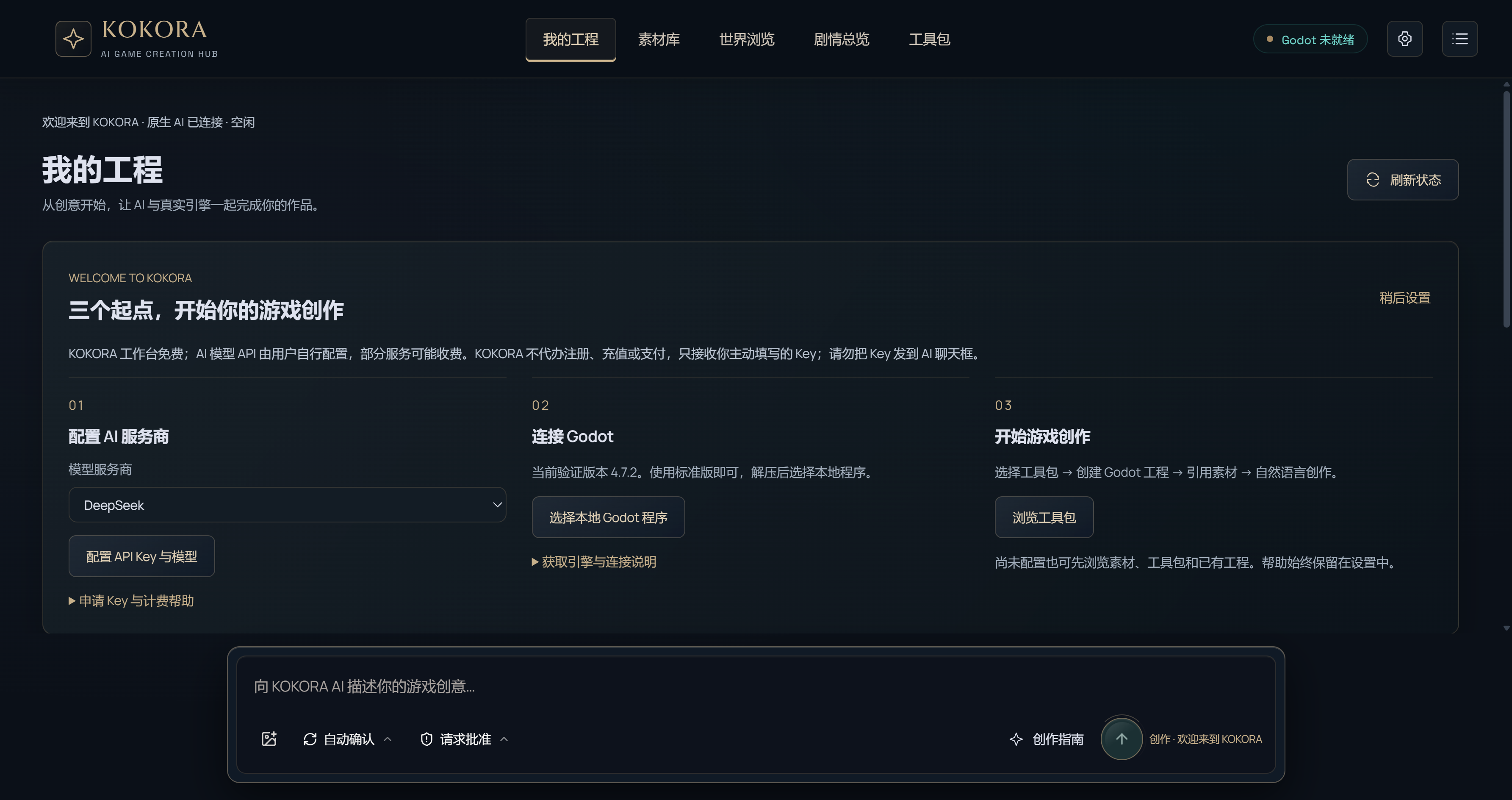
Download, extract and select the local Godot executable.
Adapted from KOKORA's existing creation guides
The KOKORA Windows app currently uses Chinese. These are real Chinese UI captures; earlier versions are labeled. Click an image to enlarge it.
Before you start
Existing toolkit verification used Godot 4.7.2. Compatibility with other versions must be checked per pack; the latest release is not automatically verified.
What to do next
Get the standard Windows edition from the official site. Ordinary GDScript projects do not require .NET. Extract it to a stable location, select Godot.exe in existing settings, and run the path/version check. Git, Node, Python and Codex are not user prerequisites.
 Enlarge ↗
Next step
You can skip engine configuration for now and browse assets, toolkits and existing projects.
How to verify the result
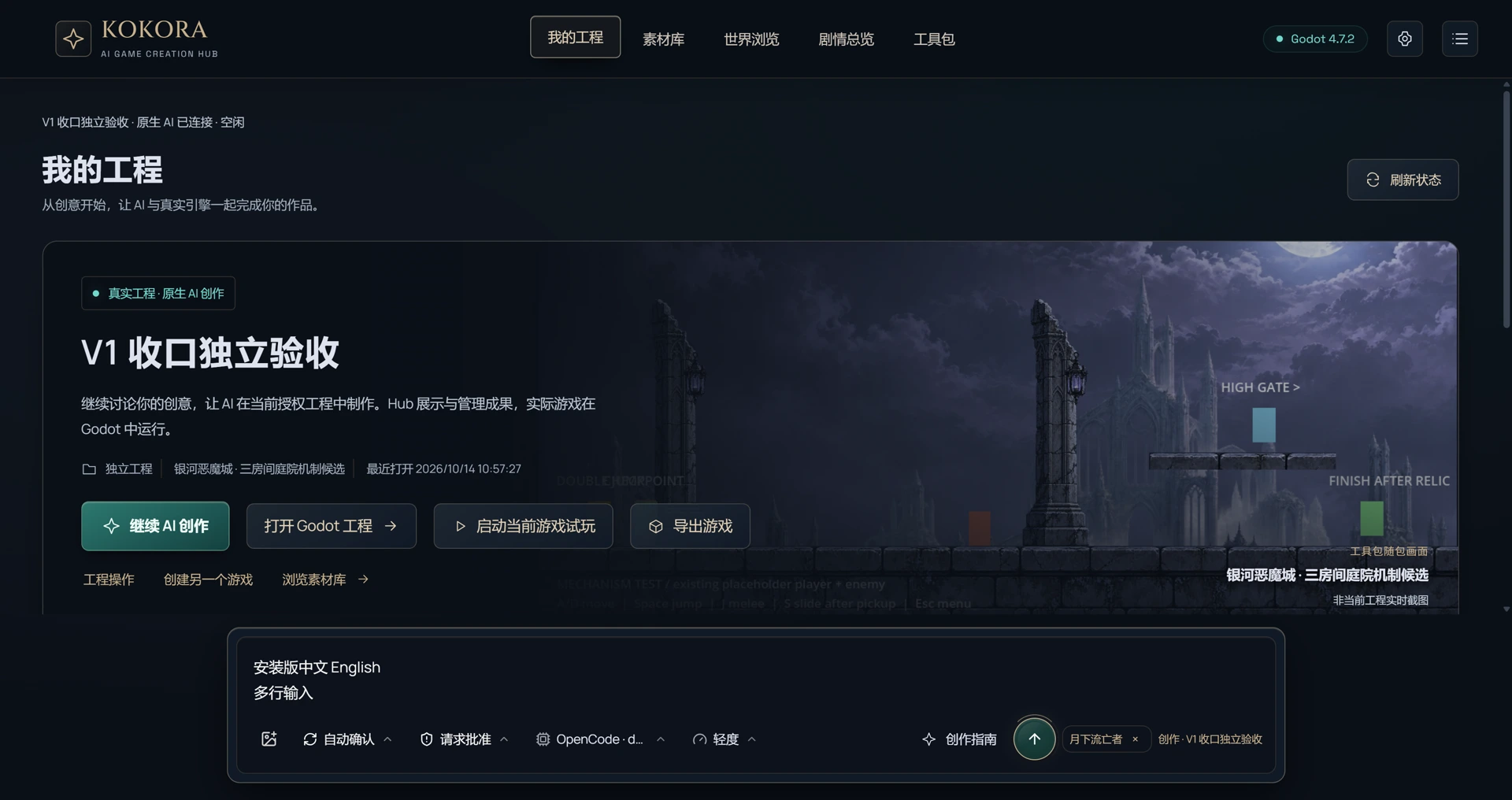
Confirm the executable and version before creating or running a project. Game export also needs matching Godot export templates.
 Enlarge ↗
Official Resources
Note
Start with a new test game to protect existing work. Check what is in the asset pack, what has been imported and what is actually used in the game. Review after saving and playtest when possible.